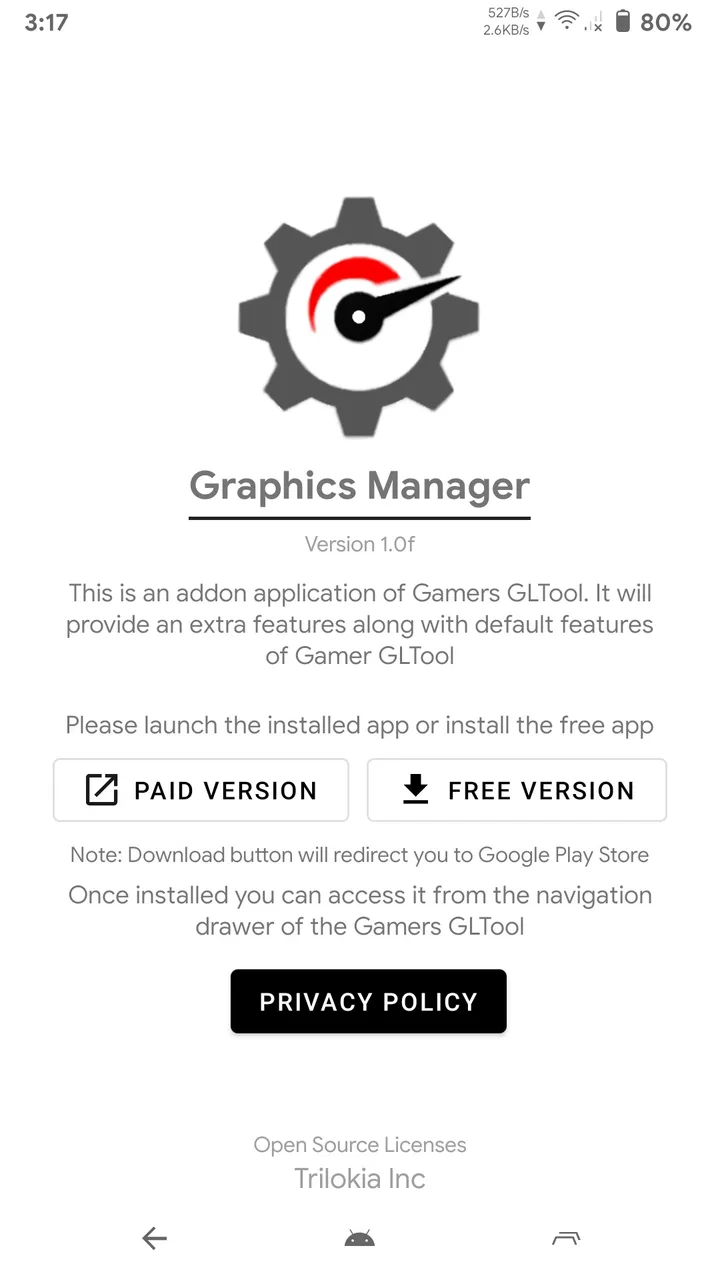
Graphics Manager : GFX Addon
- 4.2
- Rating
- 500.00K
- Installs
- Free
- Price

 Analysis by App-foxy
Graphics Manager: GFX Addon is the kind of Android utility that can feel immediately useful when a game is not running quite the way I want. Instead of accepting the default graphics profile, I can use it to adjust available visual settings through its built-in GFX Tool. That makes it more practical than a simple demo, but it is still not a magic performance switch. Its value depends on the game, the phone, and whether I am willing to test settings carefully rather than expecting one tap to solve every problem.
I see it as a small graphics-management companion for players who like to experiment. It is free, rated for Everyone, and comes from Trilokia Inc. The app belongs to the Libraries & Demo section, which is a slightly unusual home for a tool that many people will approach as a gaming accessory. It has reached over 500 thousand installs and holds a 4.2 average from around 2.2 thousand ratings, so it has clearly attracted a substantial audience without being a mainstream system utility.
What the first week feels like
During the first few sessions, the appeal is easy to understand. I can open the graphics manager before playing, look through the settings it exposes, and try to match the visual quality to what my device can handle comfortably. That is more satisfying than repeatedly changing random in-game options because the app gives the process a dedicated place. For someone who enjoys comparing image quality, smoothness, and responsiveness, the first week can feel like discovering extra control over a game that normally hides most of its graphics choices.
You May Also Like

 Blood Strike: 2.5 Anniversary
Blood Strike’s Loadouts Turn Every Drop Into a Tactical Gamble
A close look at Blood Strike’s custom loadouts: how fast access to signature weapons reshapes its battle royale rhythm, rewards preparation, and narrows the gap between fights.

 Pandora - Music & Podcasts
Pandora’s Music Is Easy to Start, but Harder to Recover
Pandora’s strength is its low-effort path from a seed to a station. Its weak spot is how much confidence it asks you to place in connection, setup, and quiet recovery.

 8 Ball Pool
 Is Built on Rivalries, Rematches, and Routine
A close look at the rivalries, rematches, shared routines, and unanswered safety questions that turn a quick pool match into a persistent mobile community.

 Samsung Music
’s Quiet Strength Is Playing What You Already Own
Its reach comes less from spectacle than from dependable access to a personal library. That simplicity is both the app’s strongest retention engine and its ceiling.

 AccuWeather: Weather Radar
AccuWeather Review: A Quick, Clear Forecast for Everyday Decisions
For everyday plans, the best forecast is the one you can understand quickly. AccuWeather makes rain timing, radar, and local conditions easy to act on, with a few trade-offs.

 Hill Climb Racing
Why Hill Climb Racing Still Turns Crashes Into One More Run
A tiny car, a bumpy hill and one more upgrade: Hill Climb Racing keeps resurfacing because its simple chaos makes every near-miss feel personal.
More From Our News Desk



The important word is “experiment.” I would not treat the tool as an automatic optimizer that knows the perfect configuration for every title. A setting that helps one game may be irrelevant to another, and a more aggressive visual profile can create heat, instability, or uneven play on a weaker phone. My best early workflow is to change one setting at a time, remember what I changed, and test the same game in a similar situation. That makes it much easier to identify whether an improvement is real or just a lucky session.
The app’s store summary describes customization through a built-in GFX Tool, while its short description calls it a Graphics Manager. Those labels fit my experience: it is primarily a control surface, not a game launcher, benchmark suite, or hardware upgrade. I would install it for a specific reason, such as trying to make a demanding game more comfortable to play, rather than because I expect it to improve every game on my phone.
One useful first-week habit is to create a baseline before changing anything. I play for a while using the game’s normal settings and pay attention to the moments that cause trouble: crowded scenes, long sessions, quick camera movement, or areas with many effects. Then I use the manager and compare the same type of situation. This is a much better test than judging the app from the first menu or from a single short match.
I also recommend keeping expectations tied to the phone’s limits. A graphics manager can expose controls, but it cannot add memory, replace a weak processor, or remove every source of stutter. If the underlying problem is a poor network connection, changing rendering options will not fix it. If the phone is already overheating, pushing visual settings higher may make the experience worse even if the picture looks sharper for a few minutes.
Who gets the most from it early on?
The strongest audience is a curious Android player who already notices the relationship between graphics quality and playability. If I care about keeping movement smooth, reducing unnecessary visual load, or finding a compromise between appearance and comfort, the app gives me a convenient place to explore those choices. It is also useful for a person whose game offers limited graphics controls and who wants to see whether the manager provides more flexibility.
It is less appealing to someone who wants a completely automatic solution. I would skip it if I never change game settings, if my current titles already run well, or if I dislike troubleshooting after an update. The app asks for attention. Even when the interface is straightforward, the responsibility for choosing sensible settings remains with me.
Does it earn a place after the novelty fades?
After the first week, the question changes from “What can I adjust?” to “Will I keep needing this?” For me, the answer depends on how often I play demanding games and how stable my preferred settings are. If I regularly switch between games with different graphics needs, the manager can remain useful because it gives me a repeatable adjustment routine. If I only play one light title, I may configure it once and then stop opening the app.
That is the central long-term trade-off. The tool has recurring value when graphics tuning is part of my normal gaming routine. It has very little recurring value when I only wanted to try every option once. The novelty comes from seeing hidden or less obvious controls; the lasting benefit comes from remembering which balance works for my device and returning to it when the game or phone changes.
A practical monthly routine would be simple. I would keep a note of the settings that feel reliable, revisit them after a major game update, and check whether the phone still behaves the same after an operating-system update or a change in temperature. I would not reset everything every time I open the app. Repeatedly chasing a theoretical improvement can waste more time than it saves.
Another useful workflow is to maintain separate profiles mentally for different priorities. For competitive play, I might prefer a stable and responsive presentation over maximum detail. For a slower single-player experience, I may accept heavier visuals if they make the game more attractive. Even without treating the manager as a full profile system, thinking this way prevents me from using one compromise for every situation.
The app can also help me make a more informed decision about the game’s own settings. If a title offers several visual presets, I can use the manager as a testing aid rather than leaving it permanently active in my routine. I may discover that a modest reduction in visual detail makes long sessions more comfortable, while a small increase brings little visible benefit. That kind of knowledge can outlast the app itself.
Still, I would not call it essential for ordinary Android gaming. Built-in game settings are usually the cleaner alternative when they provide enough control. They are closer to the game, easier to restore, and less likely to create confusion about which option caused a problem. A device manufacturer’s gaming mode may also be preferable when my main goal is broader system behavior rather than graphics customization alone.
What maintenance actually involves
The maintenance burden is not necessarily constant, but it is real. Every time a game changes its rendering behavior, adds a new graphics option, or becomes less stable, a configuration that once felt ideal may need testing again. I would treat the manager as a tuning tool, not as a set-and-forget guarantee. That mindset avoids disappointment when a previously smooth setup stops feeling smooth.
My first maintenance rule would be conservative changes. I would avoid changing several visual parameters at once because that removes the ability to learn from the result. If the game becomes blurry, unstable, or uncomfortable, I want to know which adjustment to undo. This is especially important for users who are not familiar with graphics terminology and may otherwise end up repeatedly applying settings without understanding their effect.
The second rule is to preserve a known-good starting point. Before experimenting, I would remember the game’s original configuration or take a quick note of it. If the result is worse, returning to a familiar baseline is more useful than continuing to stack changes. This small habit turns the app from a source of random tweaking into a controlled comparison tool.
The third rule is to judge long sessions, not just opening moments. A configuration can look impressive for a short time and then become uncomfortable as the phone warms up. I would test the way I actually play: a full session, a busy level, or a repeated match rather than a quiet menu. That is where the difference between a genuinely useful adjustment and a novelty setting becomes clear.
There is also a personal maintenance cost: remembering to use the manager before launching a game. If I have to repeat a multi-step process every time, the convenience can disappear. The app earns lasting space more easily when my preferred setup is stable and the changes are quick. If I constantly need to revisit settings, its benefits may be outweighed by the routine itself.
Where fatigue begins
The biggest source of fatigue is uncertainty. When a game behaves differently, I may not immediately know whether the cause is the graphics configuration, the game update, background activity, heat, or the network. A graphics manager gives me more variables, and more variables can mean more troubleshooting. That is not a flaw unique to this app, but it is the main reason I would not recommend it casually to every player.
There is also a temptation to optimize endlessly. I can spend more time comparing small visual differences than actually playing. The sensible stopping point is not the setting that looks best in a screenshot; it is the setting that feels dependable during normal use. Once I find a comfortable balance, I would stop experimenting until I have a clear reason to change it.
Another limitation is that visual customization does not solve every performance complaint. If the game’s problem is poor coding, server delay, touch response, or a phone that is simply beyond its comfortable workload, the manager may offer little relief. In that situation, lowering expectations or choosing a less demanding game is more effective than continuing to search for a perfect graphics combination.
I would also be careful with the idea that higher visual quality is always better. More detail can reduce readability, drain the phone’s comfort margin, or make a long session less pleasant. For me, the best result is often a compromise: enough clarity to enjoy the game, but not so much that the device struggles. The most valuable setting is the one I can keep using, not the one that looks impressive for five minutes.
Compared with ordinary graphics menus, the app’s advantage is focus. It puts graphics adjustment at the center instead of burying it inside each game. Compared with broader gaming utilities, its appeal is narrower but clearer: I use it specifically when graphics control is the problem I am trying to solve. A built-in game menu is better for simplicity, while a device-level gaming tool may be better for notifications, performance modes, or general session management. This app makes the most sense when those alternatives do not give me enough visual control.
Everyday scenarios where it makes sense
Imagine I am playing on an older Android phone during a commute. The game is enjoyable, but busy scenes feel uneven and the default presentation seems more ambitious than the device can comfortably sustain. I could use the manager to test a lighter graphics arrangement, then compare the same type of scene on the next session. If the result is steadier and the image remains clear enough, the app has delivered a practical improvement without requiring me to replace the phone.
In another situation, I may share a phone with someone who prefers a different balance. I might favor responsiveness for competitive play, while another player cares more about detail. A dedicated graphics manager makes it easier to discuss and reproduce those choices instead of changing settings blindly inside the game each time. The benefit is not just performance; it is clarity about why the game feels different.
There is a less obvious use too: learning what the device can realistically handle. By testing gradually, I can find the point where additional visual quality stops being worth the cost. That knowledge helps me make better decisions in other games, even when I do not use the app directly. It turns the manager into a small diagnostic aid, although I would still avoid treating its results as a formal hardware test.
Compatibility, cost, and who should skip it
The app is available for Android devices running version seven or later, which covers a broad range of phones but still makes the operating-system requirement worth checking before installation. It is free, so trying it does not require a purchase decision. The current version is 1.7, and the app was released on September 18, 2020, details that place it in the category of an established utility rather than a brand-new experiment.
Its Everyone age rating makes it approachable for general users, but an age label does not remove the need for careful testing. Younger or less technical users may be better served by the game’s own presets if they do not want to troubleshoot unexpected behavior. I would explain the purpose clearly before handing the phone to someone else: this is for adjusting graphics, not for guaranteeing faster gameplay.
I would skip it when my games already run comfortably, when I value the fewest possible steps, or when I am unwilling to restore settings after an unsuccessful experiment. I would also choose a different option if my goal is battery management, network improvement, recording, or system-wide gaming controls. Graphics Manager: GFX Addon is too focused to replace a complete gaming toolkit, and that focus is both its strength and its boundary.
For users who do install it, I would begin with one game rather than changing everything at once. Pick the title that most clearly shows the problem, record the normal behavior, adjust cautiously, and test during a realistic session. If the improvement is repeatable, keep the configuration. If it is subtle or inconsistent, return to the simpler setup. This approach answers the practical question of whether the app is helping instead of assuming that more control automatically means a better result.
My long-term verdict
After the initial curiosity wears off, I see Graphics Manager: GFX Addon as a useful specialist tool rather than a permanent requirement. It earns a lasting place on my phone when I regularly play graphics-heavy games, enjoy tuning settings, or use a device that needs a careful balance between appearance and smoothness. In those cases, the free app can turn vague frustration into a more structured process.
It does not earn that place simply because it offers more options. More options bring responsibility, maintenance, and the possibility of chasing improvements that are too small to matter. The app is at its best when I use it deliberately, keep a known-good baseline, change one thing at a time, and judge results during real play. It is at its weakest when I expect automatic optimization or use it to solve problems that are not graphical.
My recommendation is therefore conditional but positive. I would suggest it to an Android player who wants hands-on graphics control and is comfortable with a little trial and error. I would not recommend it as a first choice for someone who wants effortless gaming management; the built-in settings or a simpler device utility may be a better fit. For the right user, though, its recurring value comes from a practical habit: tune once, remember what works, and revisit the setup only when the game or device gives you a real reason.
That is why I think it can outlast the novelty. It is not the sort of app I would open for entertainment, and I would not keep changing settings just to feel productive. But when a game needs a more sensible visual compromise, having a focused graphics manager available is convenient. Used with restraint, it becomes a small but worthwhile part of my gaming routine rather than another utility that disappears after the first experiment.
FAQs for Graphics Manager : GFX Addon
01What is Graphics Manager: GFX Addon, and what does it do?
Graphics Manager: GFX Addon is an app designed to optimize and enhance the graphics settings of your mobile games. By customizing parameters such as resolution, frame rate, and texture quality, it aims to improve gaming performance and visual quality, offering a smoother and more immersive gaming experience.
02Is Graphics Manager: GFX Addon safe to use on my device?
Yes, Graphics Manager: GFX Addon is safe to use, provided it is downloaded from official app stores like Google Play or the Apple App Store. The app does not contain malware and respects user privacy. Always ensure your device meets the minimum system requirements to avoid any potential issues.
03Does using Graphics Manager: GFX Addon void my game warranty or violate terms of service?
Using Graphics Manager: GFX Addon typically does not void warranties or violate terms of service for most games. However, it is advisable to review the specific terms of service for each game, as some developers may have restrictions on third-party modifications that could lead to account bans.
04Will Graphics Manager: GFX Addon affect my device's battery life?
Graphics Manager: GFX Addon can have an impact on battery life, as optimizing graphics settings for better performance may increase power consumption. Users should monitor their device's battery usage and adjust settings accordingly to balance performance with battery efficiency.
05Can Graphics Manager: GFX Addon improve performance on all games?
While Graphics Manager: GFX Addon can optimize settings for many games, results may vary depending on the game and the device's hardware capabilities. High-end games on older or less powerful devices might not see significant improvements, whereas mid-range games on newer devices could experience noticeable enhancements.
Pros
- Enhances game graphics significantly.
- User-friendly interface for easy navigation.
- Supports a wide range of devices.
- Customizable settings for personalization.
- Regular updates for new features.
Cons
- May drain battery faster.
- Some features require in-app purchases.
- Compatibility issues with older devices.
- Occasional crashes on specific games.
- Can increase device heat during use.

Graphics Manager : GFX Addon
Gallery